
Browser Extension Dev - 06. On-Demand Script Injection
Introduction
In the previous chapter Browser Extension Dev - 05. Storage and Configuration, I introduced how to add a settings page to extensions and use the Storage API to save and read configuration. In this chapter, I’ll cover on-demand script injection. This approach doesn’t slow down websites at all, and shows no security warnings when installed from the Chrome Web Store. We’ll implement an extension that copies a webpage’s main content as Markdown with a single click on the extension icon.
Thinking Through the Approach
We’ve already learned about Content Script injection and how Background Scripts can listen for extension icon clicks. Although not yet covered, these two can communicate with each other via messaging.
With this background knowledge, you might think about implementing it this way:
- Inject Content Scripts into all web pages and listen for messages from the background
- When the extension icon is clicked, have the Background Script notify the Content Script
- Execute the specific logic in the Content Script
This approach has several major drawbacks:
- Injecting Content Scripts into all web pages by default not only slows down websites but also poses risks, since the injection process is completely invisible to users, and future extension updates could introduce vulnerabilities
- It requires extremely high permissions - when installing the extension, a security warning appears stating that this extension requires permission to read and modify all websites the user visits
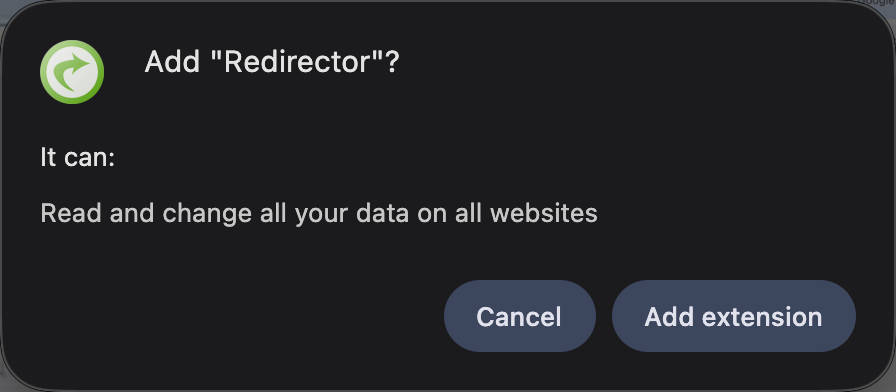
For scenarios that require explicit user action to trigger, there’s actually a simpler implementation:
- When the extension icon is clicked, inject a script into the current webpage from the Background Script
- Execute the specific logic in that script
This way, the required permissions change from ['<all_urls>'] to ['activeTab', 'scripting']. Although the number of permissions increases, the risk is actually lower - code can only execute when triggered by the user, so there are no warnings when installing the extension. For example:
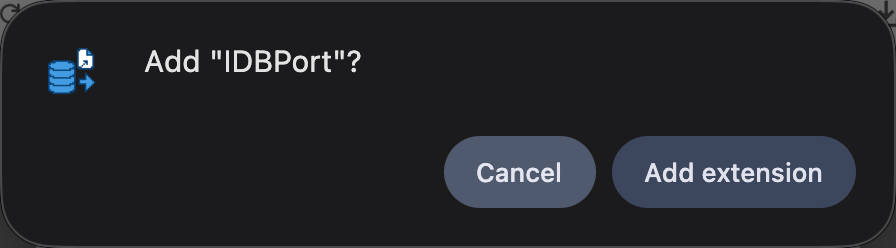
The key API involved here is scripting.executeScript, which, as the name suggests, is used to execute custom scripts.
Reference the Chrome official activeTab guide: https://developer.chrome.com/docs/extensions/develop/concepts/activeTab
Implementation
Injecting Scripts on Extension Icon Click
Let’s implement the listening and injection logic in the background script.
First, update wxt.config.ts to add the required permissions and an empty action field.
import { defineConfig } from 'wxt'

export default defineConfig({
  manifestVersion: 3,
  manifest: {
    name: 'Copy As Markdown',
    description: 'Copy page content as Markdown',
    permissions: ['activeTab', 'scripting'],
    action: {},
  },
  webExt: {
    disabled: true,
  },
})
Then add a test injection script. Unlike Content Scripts, this type of script needs to be declared using defineUnlistedScript in WXT.
// entrypoints/inject.ts
export default defineUnlistedScript(() => {
  alert('Injected script executed!')
})
Then listen for clicks and inject it in the background script.
import { PublicPath } from 'wxt/browser'

export default defineBackground(() => {
  browser.action.onClicked.addListener(async (tab) => {
    if (tab.id) {
      await browser.scripting.executeScript({
        target: { tabId: tab.id },
        // The /inject.js here refers to the built file - if you use pnpm build, you can see inject.js in .output/chrome-mv3
        // Note: Initially there may be TypeScript type errors here - after starting pnpm dev/build, WXT will correctly scan entrypoints and generate type definitions
        files: ['/inject.js'] as PublicPath[],
      })
    }
  })
})
Besides the files parameter, you can also pass functions and arguments directly via func/args, suitable for simple scenarios. Reference: https://developer.chrome.com/docs/extensions/reference/api/scripting#type-ScriptInjection
When we open google.com and click the extension icon, we find nothing happens. Looking at the extension details page, we can see an error.
Uncaught (in promise) Error: Could not load file: 'inject.js'.Just like when Browser Extension Dev - 03. Injecting UI, we need to add web_accessible_resources configuration to the manifest.
import { defineConfig } from 'wxt'

export default defineConfig({
  manifestVersion: 3,
  manifest: {
    name: 'Copy As Markdown',
    description: 'Copy page content as Markdown',
    permissions: ['activeTab', 'scripting'],
    action: {},
    web_accessible_resources: [
      {
        resources: ['inject.js'],
        matches: ['<all_urls>'],
      },
    ],
  },
  webExt: {
    disabled: true,
  },
})
Try again, and you can see the script is indeed injected and executed correctly.
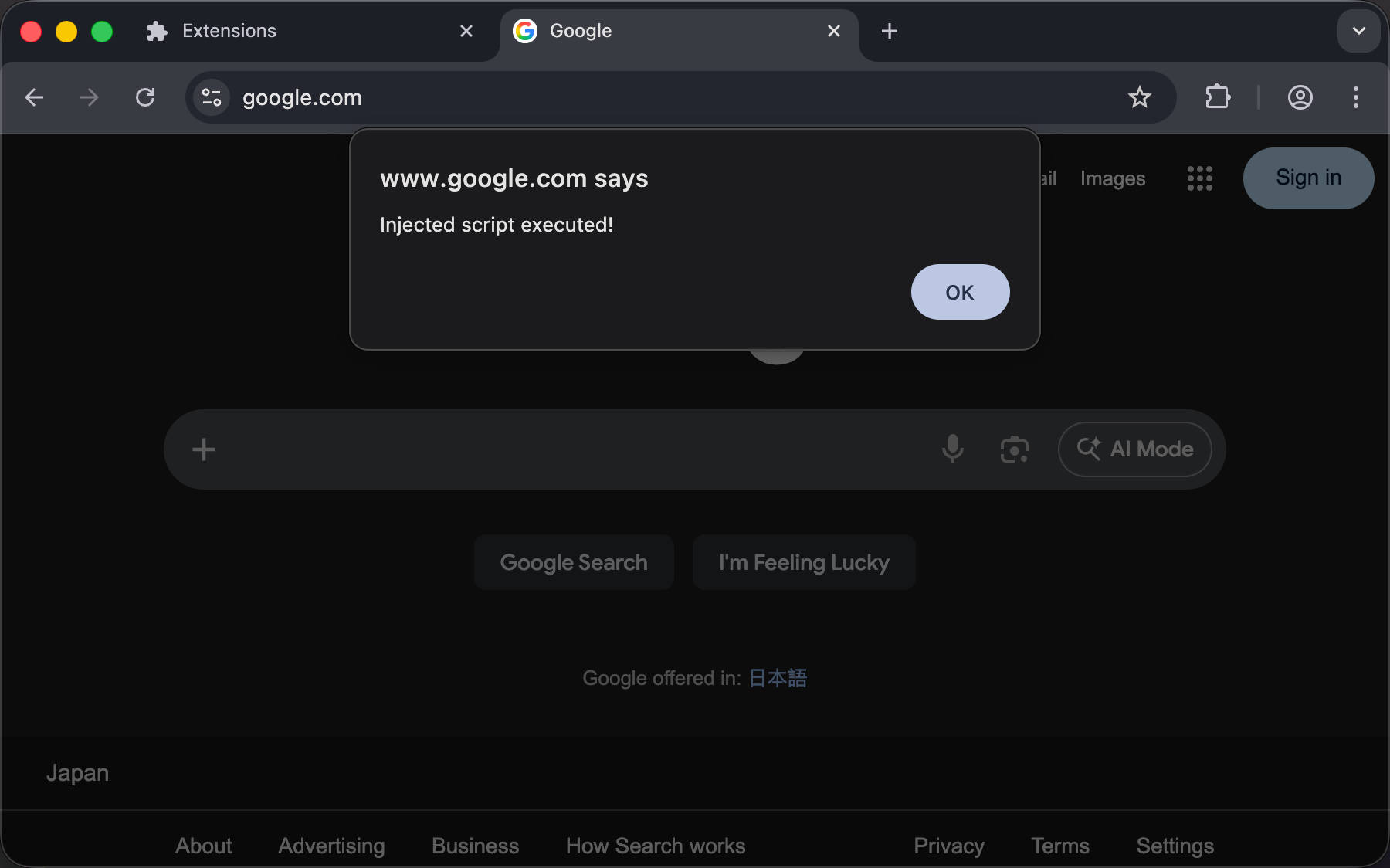
⚠️ Limitation: If you want the injected script to persist (automatically run after refreshing or re-entering the page), this won’t work. You still need to properly declare
host_permissionsto persistently inject Content Scripts - even using the scripting API is still subject to the permission model.
Implementing Functionality in the Injected Script
Next, let’s implement the functionality to read the webpage’s main content, convert it to Markdown, and copy it to the clipboard. With the npm ecosystem, this is straightforward to implement.
- Read webpage main content: Use the @mozilla/readability package
- Convert HTML to Markdown: Use the turndown package
First, install the required dependencies:
pnpm i @mozilla/readability turndown
pnpm i -D @types/turndown
Then write a small amount of glue code to complete the implementation.
import { Readability } from '@mozilla/readability'
import TurndownService from 'turndown'

export default defineUnlistedScript(async () => {
  const service = new TurndownService({
    headingStyle: 'atx',
    codeBlockStyle: 'fenced',
  })
  const reader = new Readability(document.cloneNode(true) as Document) // Deep clone to avoid affecting the original webpage
  const article = reader.parse() // Parse main content
  if (article && article.title && article.content) {
    const markdown = service.turndown(article.content) // Convert HTML to Markdown
    await navigator.clipboard.writeText(`# ${article.title}\n\n${markdown}`) // Copy
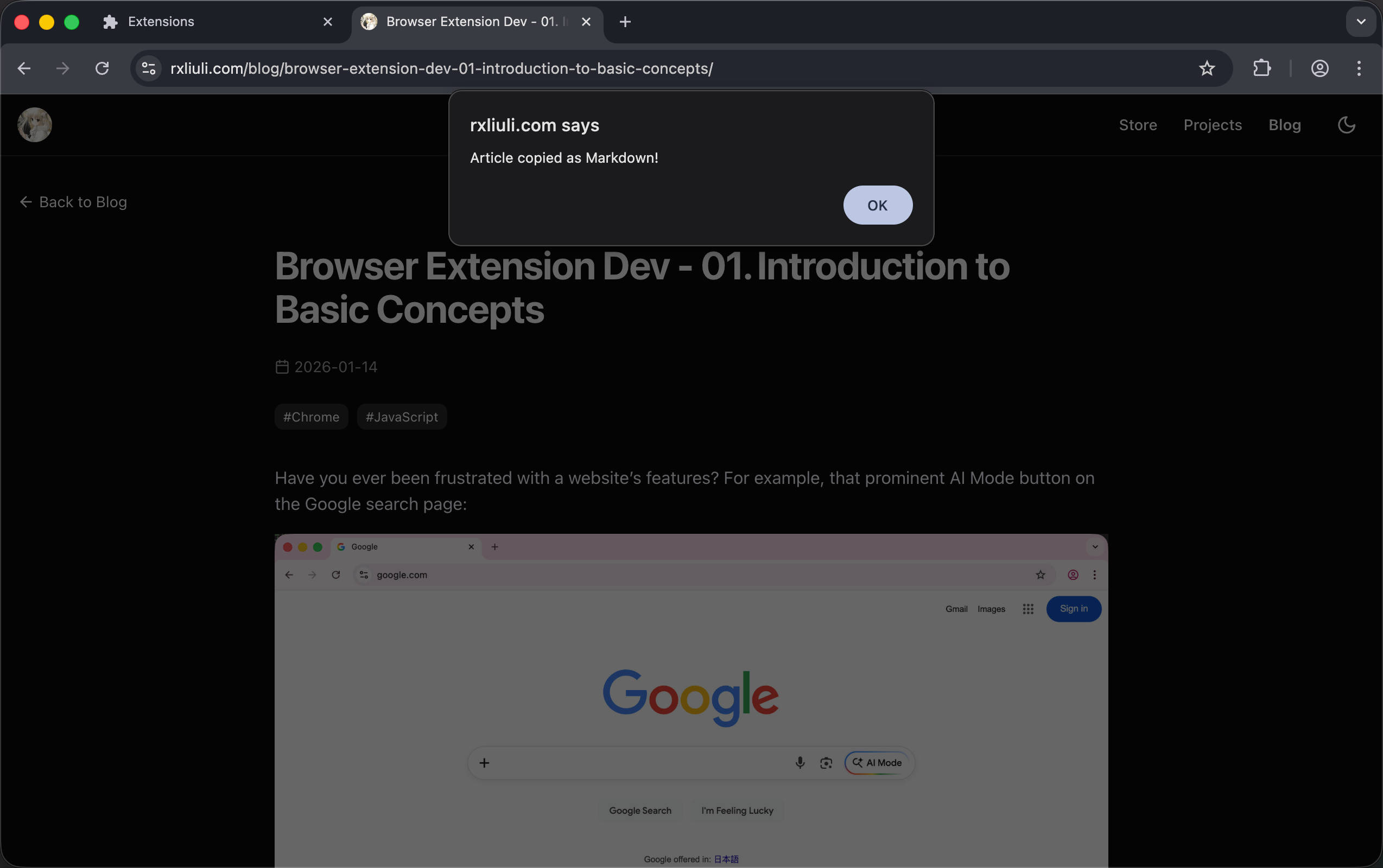
    alert('Article copied as Markdown!')
  } else {
    alert('Failed to parse the article.')
  }
})
Summary
In this chapter, we implemented an extension with on-demand script injection that doesn’t affect normal webpage operation and only executes code when triggered by the user - truly plug and play. In the next chapter, we’ll continue improving this extension by using a Popup window to directly preview and edit the Markdown copied from the current page.
Complete code: https://github.com/rxliuli/browser-extension-dev-examples/tree/main/packages/06-inject-script-on-demand