
SimDrop
Your running iOS simulators, right in the Finder sidebar.
Moving a file between your Mac and an iOS simulator usually means xcrun simctl or digging through ~/Library/Developer/CoreSimulator. SimDrop puts every booted simulator under Locations in Finder, so you drag files in and out like any other folder.
$ brew install --cask rxliuli/tap/sim-drop macOS 15 or later · Developer ID signed and notarized · Free and open source
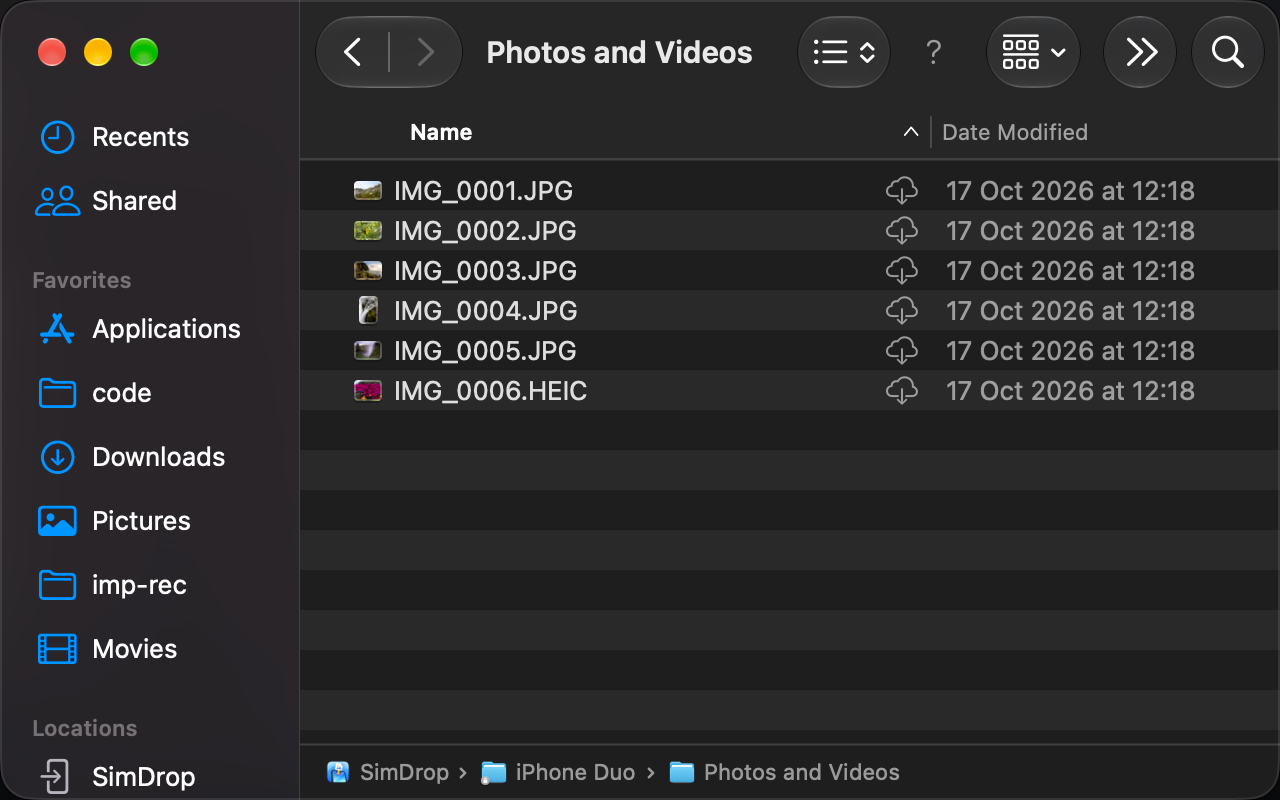
What shows up in Finder
One folder per booted simulator. It appears when the simulator boots and disappears when it shuts down.
SimDrop                      ← Finder sidebar › Locations
└── iPhone Duo/              ← one folder per booted simulator
    ├── Photos and Videos/   ← the simulator's Photos library
    └── Downloads/           ← Files › On My iPhone › Downloads
Every folder is also a real path, so scripts work too: cp config.json ~/Library/CloudStorage/SimDrop-SimDrop/iPhone\ Duo/Downloads/
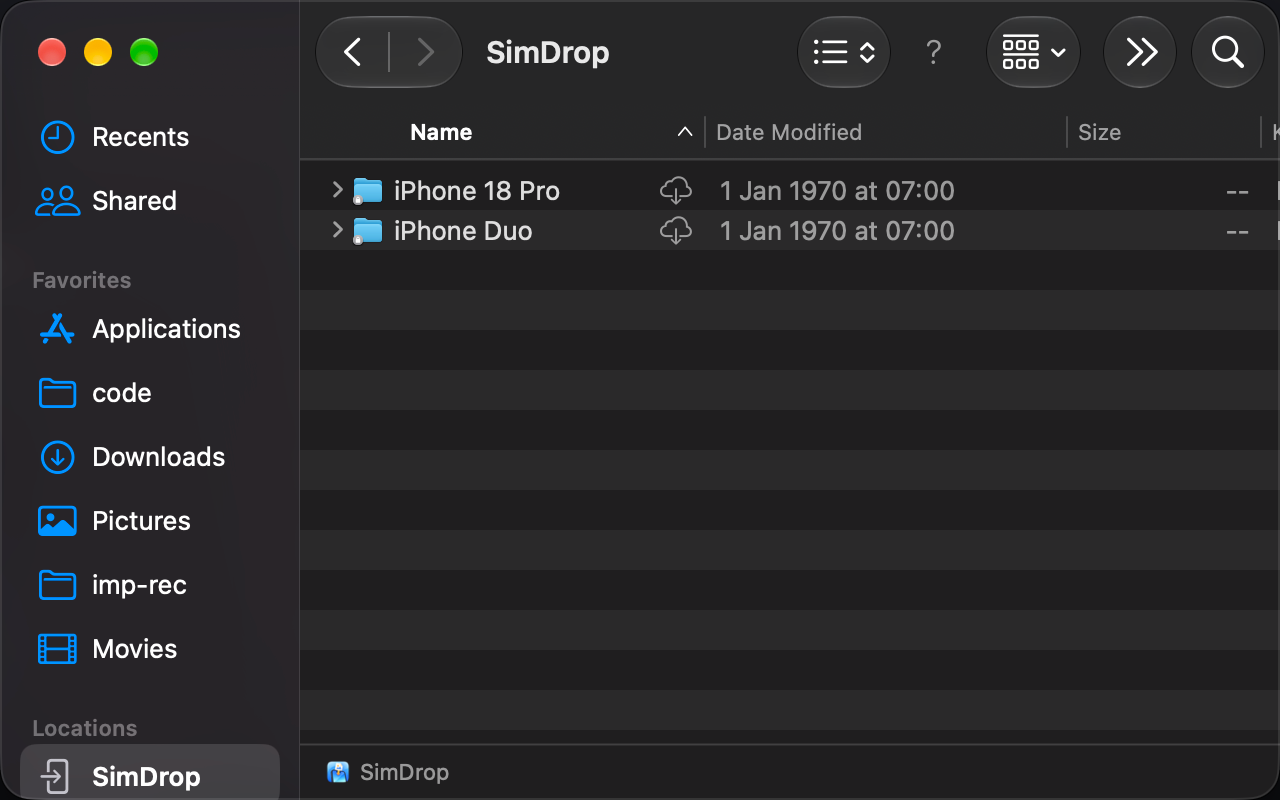
Drag in, drag out
Photos and videos
Dropped images and videos are imported with simctl addmedia and show up in the Photos app. Icon view shows real previews without downloading anything first.
Downloads
Add, open, replace and delete files and folders. Changes made inside the simulator show up in Finder within a few seconds.
Dropped in the wrong place
Finder can't reject a drop by file type, so anything that isn't a photo or video dropped on Photos goes to Downloads instead, and SimDrop sends a notification saying where it went.
Deletes you can undo
Deleting a photo moves it to the simulator's Recently Deleted. Deleting from Downloads sends the file to your Mac's Trash, and Put Back restores it into the simulator.
Set up once
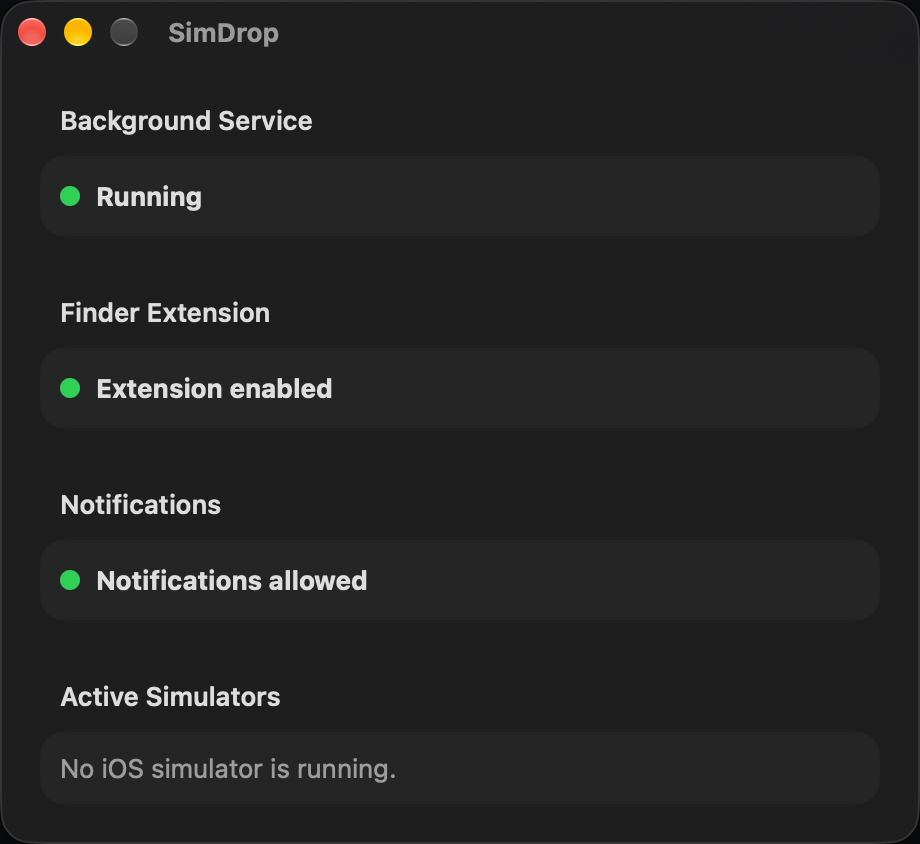
The SimDrop window is only a settings page. It shows the state of each one-time approval and which simulators are running.
- 1
Open SimDrop.
- 2
Allow the Background Service in System Settings › General › Login Items.
- 3
Turn on the Finder Extension by clicking Enable in the Finder banner.
- 4
Allow Notifications, so SimDrop can tell you where a file went when it lands somewhere other than where you dropped it.
After that it runs in the background, including after a restart, and the window can be closed. After installing or upgrading, open SimDrop once so macOS registers the new Finder extension.
Good to know
-
Dragging moves by default. SimDrop lives on your startup disk like iCloud Drive, so Finder moves files instead of copying them. Hold ⌥ Option while dragging to copy.
-
Photos are read-only. Dragging a photo out of a simulator always copies it.
-
No renaming inside Downloads yet. Renaming and moving items within Downloads isn't supported, because item identifiers are path-based.
-
Simulators only. Real devices don't expose Files app storage over USB, so they aren't supported.
SimDrop isn't on the Mac App Store and can't be: the app and its helper must run unsandboxed to drive simctl and the simulators' folders.
SimDrop makes no network requests. There is no account, no analytics and no crash reporting.
Files you drop go from your Mac to simulators on the same Mac, through Apple's own simctl, and nowhere else.
Found a bug or want a feature? Open an issue or come say hi.