
Browser Extension Dev - 04. Background Script
Introduction
In the previous chapter Browser Extension Dev - 03. Injecting UI, I demonstrated how to inject custom UI into web pages, along with how to use Shadow DOM, Tailwind CSS, and npm packages. In this chapter, I’ll introduce Background Scripts, one of the core elements of extensions.
First, what is a Background Script?
As the name suggests, this is a script that the extension can run in the background. Unlike scripts injected into web pages, it has several notable characteristics:
- Can access all extension APIs. In other parts of the extension, such as Content Scripts, accessible extension APIs are extremely limited - for example, you cannot access the tabs API to get all open tabs in the browser.
- Globally unique. For Content Scripts, they may be injected multiple times across multiple tabs, but Background Scripts always remain unique - there’s never more than one running simultaneously.
- On-demand activation. After Manifest V3, Background Scripts were changed to an event-based model, meaning they automatically sleep to save resources when no events are incoming (for example, extensions can listen for new tab opening events).
- Cannot use DOM APIs. This point isn’t obvious - while Background Scripts do run in the browser environment and can use limited Web APIs, they cannot access the DOM, although there are a few alternatives (jsdom/Offscreen).
- Can communicate with other parts of the extension. Background Scripts can communicate with Content Scripts, Popup Pages, and other components, but these other parts cannot communicate directly with each other, so Background Scripts need to act as intermediaries.
References:
Background introduction: https://developer.chrome.com/docs/extensions/develop/concepts/service-workers (After Manifest V3, Chrome officially renamed these to “extension service workers”, but they’re still commonly called Background Scripts)
Manifest V3 introduction: https://developer.chrome.com/docs/extensions/develop/migrate/what-is-mv3
The above covers the key points of Background Scripts. Next, I’ll implement an extension that automatically puts inactive tabs to sleep to demonstrate these concepts. Here are the Tabs APIs we’ll be using, reference: https://developer.chrome.com/docs/extensions/reference/api/tabs
Planning
First, how should we define an inactive tab?
From a simple perspective, a tab that hasn’t been accessed for a long time is inactive - for example, if the last time you accessed a tab was 30 minutes ago, it should be considered inactive. How do we know when a tab was last accessed? This requires listening to tab-related events. Here are the three basic events involved:
onCreated => Add tab information to extension records
onRemoved => Remove from the extension’s recorded tab list
onActivated => Update the tab’s last access time
After a tab has been inactive for a long time, we can automatically freeze it. The browser allows automatic eviction from memory without closing the tab - when accessed again, it will automatically reload.
Extension starts
       │
       ▼
Initialize existing tabs
       │
       ▼
┌─────────────────────────────────────────────────┐
│              Wait for events                    │◄──────┐
└─────────────────────────────────────────────────┘       │
       │                                                  │
       ├─── onCreated ──► Record new tab time ───────────►│
       │                                                  │
       ├─── onRemoved ──► Remove tab record ─────────────►│
       │                                                  │
       └─── onActivated ──► Update access time            │
                                   │                      │
                                   ▼                      │
                           Check all tabs                 │
                                   │                      │
                                   ▼                      │
                          Over 30 minutes?                │
                            │         │                   │
                        Yes │         │ No                │
                            ▼         └──────────────────►│
                        Freeze tab                        │
                            │                             │
                            └─────────────────────────────┘
Note: The Tabs API itself provides a
lastAccessedfield to view a tab’s last access time, but this field is not supported in Safari. Reference: https://developer.mozilla.org/en-US/docs/Mozilla/Add-ons/WebExtensions/API/tabs/Tab#browser_compatibility
Implementation
Since the initialization process was explained in previous chapters, I won’t repeat it here.
# init project
pnpm dlx wxt@latest init 04-background-script --template vanilla --pm pnpm
// wxt.config.ts
import { defineConfig } from 'wxt'
export default defineConfig({
manifestVersion: 3,
manifest: {
name: 'Auto Sleep Tabs',
description: 'Automatically puts inactive tabs to sleep to save memory and CPU.',
},
webExt: {
disabled: true,
},
})Listening to Tab Events
First, open entrypoints/background.ts and you’ll see the code initialized by WXT.
export default defineBackground(() => {
  console.log('Hello background!', { id: browser.runtime.id })
})
Let’s register our listeners inside the function:
export default defineBackground(() => {
  console.log('Hello background!', { id: browser.runtime.id })

  const lastAccessed = new Map<number, number>()

  browser.tabs.onCreated.addListener((tab) => {
    if (!tab.id) {
      return
    }
    lastAccessed.set(tab.id, Date.now())
  })
  browser.tabs.onRemoved.addListener((tabId) => {
    lastAccessed.delete(tabId)
  })
  browser.tabs.onActivated.addListener((activeInfo) => {
    lastAccessed.set(activeInfo.tabId, Date.now())
    console.log('Tab activated:', activeInfo.tabId)
  })
})
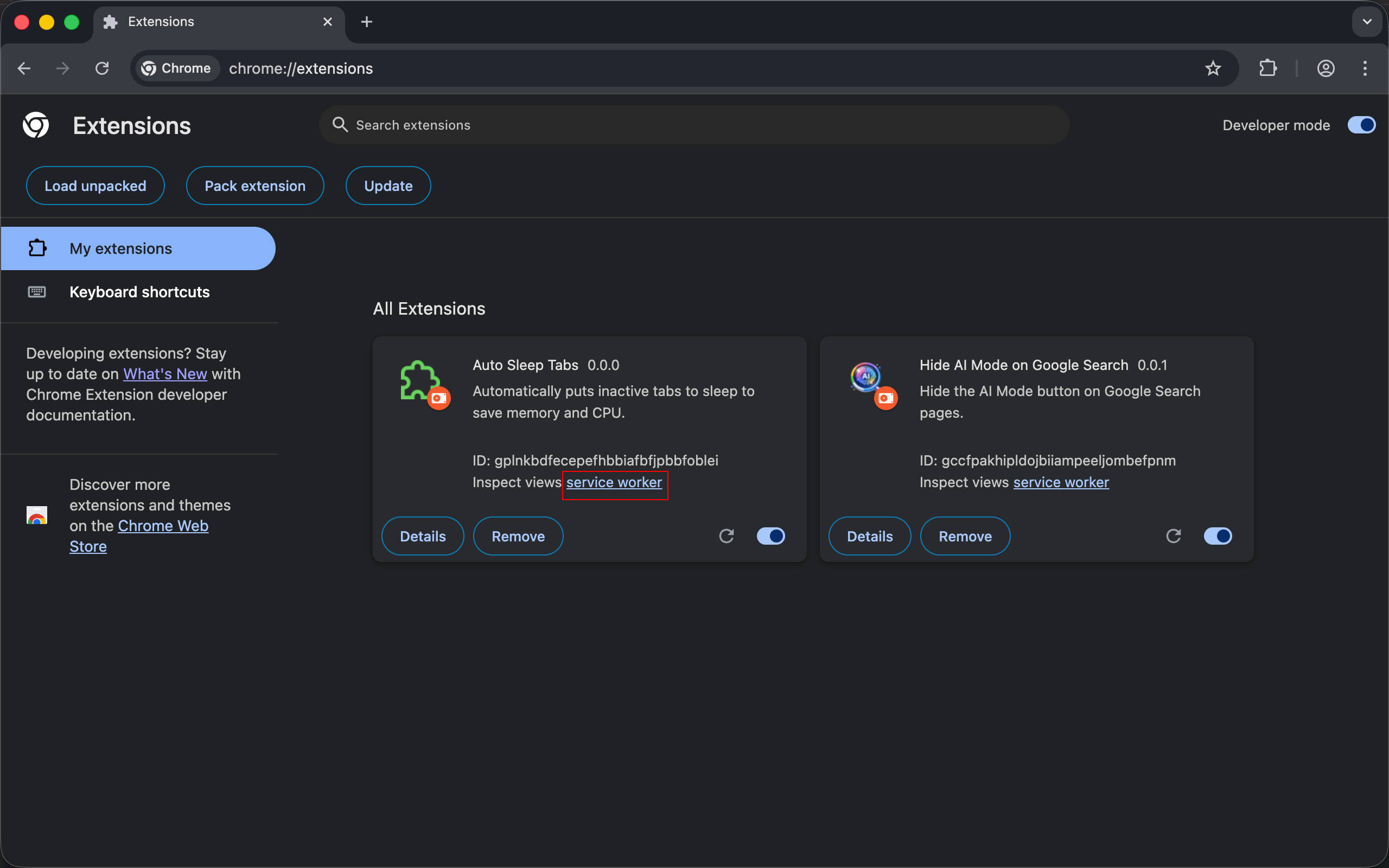
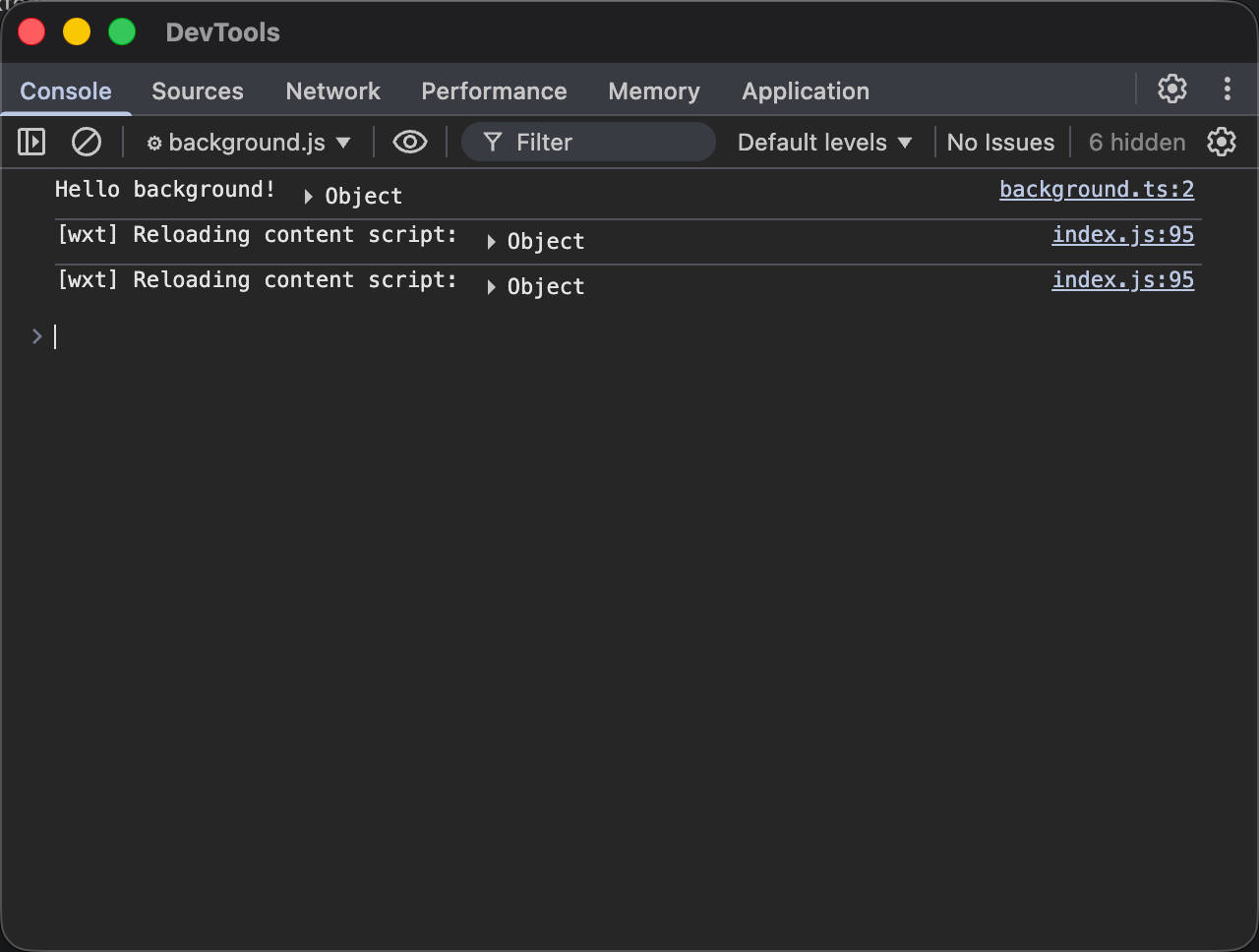
Now, start development mode with pnpm dev, open chrome://extensions/, load the unpacked extension and select the .output/chrome-mv3-dev directory, then click the extension’s service worker link to open the Background Script’s DevTools Console and start debugging.
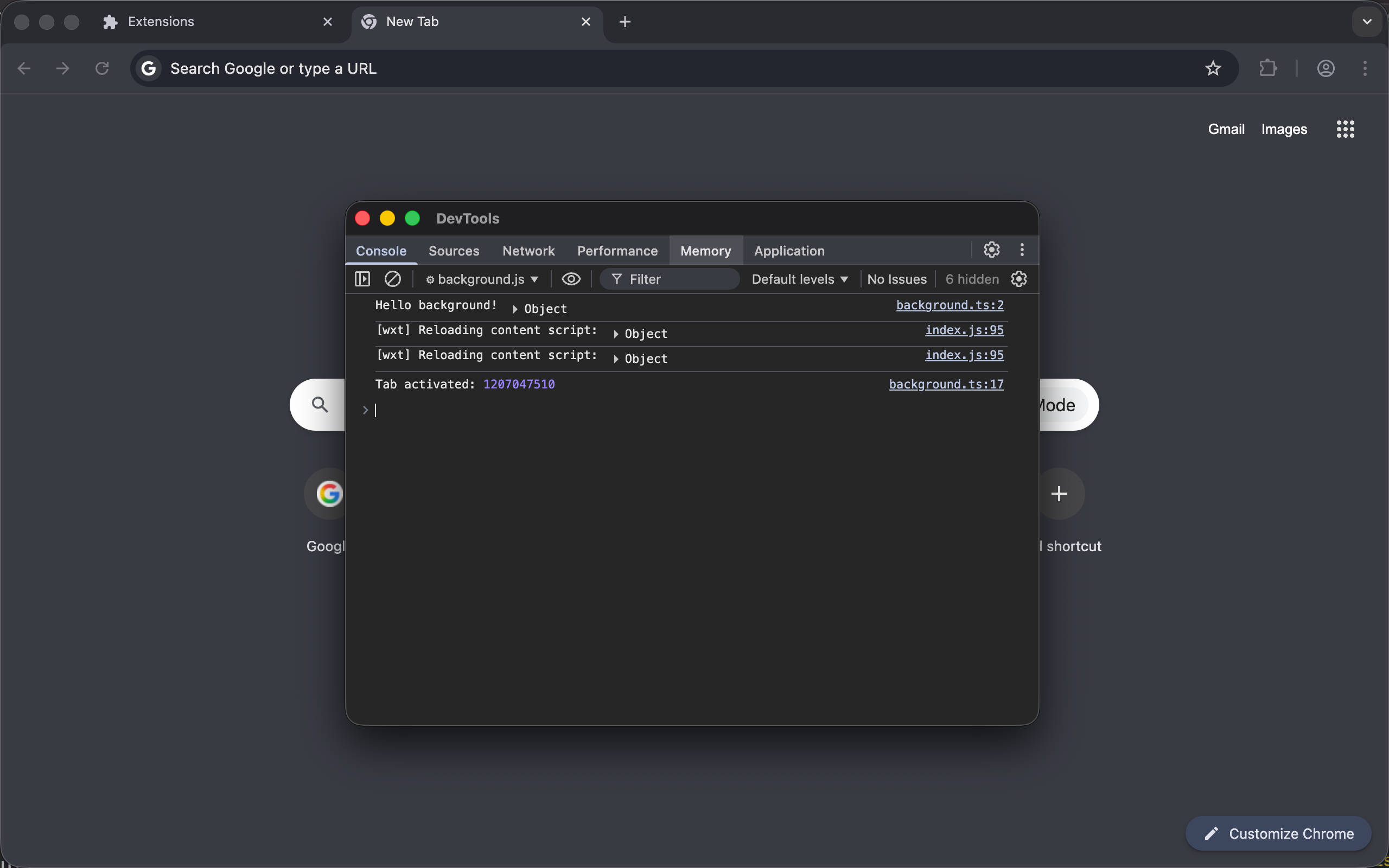
When we add a new tab, we can see logs like Tab activated: 1207047510.
Identifying Inactive Tabs and Auto-Freezing
Next, we need to check in the onActivated event whether any recorded tabs haven’t been accessed for a long time, and if found, automatically freeze them. Before that, we need to update wxt.config.ts to add the tabs permission, which is required for using the browser.tabs.query API.
import { defineConfig } from 'wxt'

export default defineConfig({
  manifest: {
    // other config...
    permissions: ['tabs'],
  },
  // other config...
})
You may notice that the tab query below includes many filter conditions. Here’s an explanation for each:
browser.tabs.onActivated.addListener((activeInfo) => {
  lastAccessed.set(activeInfo.tabId, Date.now())
  console.log('Tab activated:', activeInfo.tabId)
  autoDiscardTabs()
})
async function autoDiscardTabs() {
  const Timeout = 30 * 60 * 1000 // 30 minutes
  const tabs = (await browser.tabs.query({})).filter(
    (tab) =>
      tab.id && // Only find regular tabs with an id; some special tabs may not have an id, like browser debug windows
      !tab.pinned && // If it's a pinned tab, ignore it
      !tab.active && // If the tab is still active, meaning you've been staying on one tab
      !tab.audible && // If audio/video is playing, ignore it
      !tab.frozen && // If already frozen by Chrome's built-in mechanism, ignore it
      !tab.discarded && // If already manually discarded, ignore it
      lastAccessed.has(tab.id) && // If this tab hasn't been recorded, ignore it
      Date.now() - lastAccessed.get(tab.id)! > Timeout, // If last access time was more than 30 minutes ago, it meets the criteria
  )
  for (const tab of tabs) {
    // Note: discard may fail, e.g., if the tab is being used or has been closed
    await browser.tabs.discard(tab.id!)
    console.log('Tab auto-discarded:', tab.id, tab.title)
  }
}
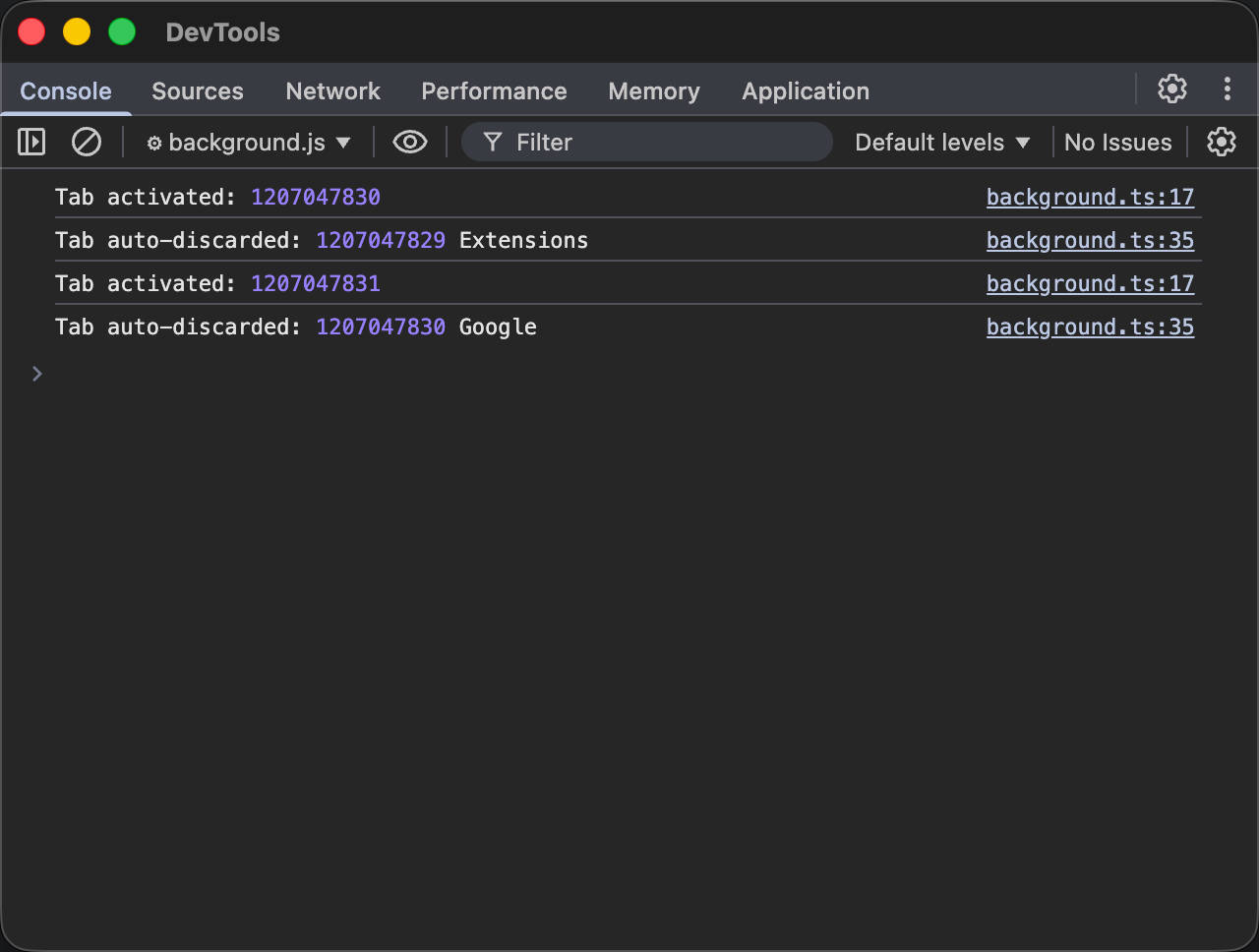
Set Timeout to 1ms for easy testing. After switching tabs and switching back, you’ll see the tab automatically refresh, which means the auto-freeze feature is working.
Summary
We’ve now implemented basic tab auto-freeze functionality. This implementation is quite rough and there are many issues not addressed. If you’re interested, you can try solving these problems yourself:
- How to let users manually configure the auto-freeze time to avoid default values not meeting user needs
- How to solve the problem where users don’t use the browser for a long time, not triggering any events and thus preventing sleep
- How to handle tabs that already exist when the extension starts (hint:
browser.runtime.onStartup)
In the next chapter, we’ll introduce configuration-related APIs and the options page to address configuration issues.
Complete code: https://github.com/rxliuli/browser-extension-dev-examples/tree/main/packages/04-background-script